


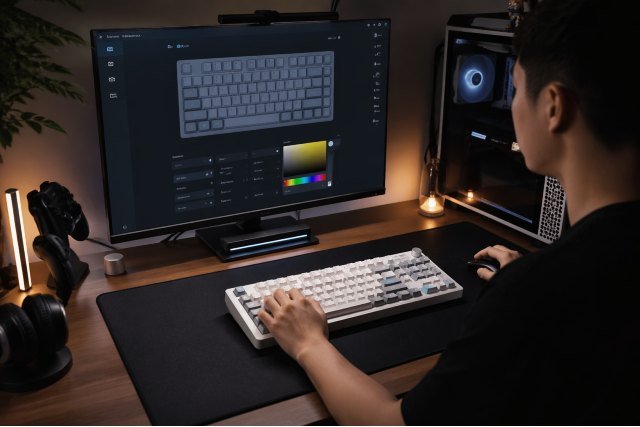
If you own this keyboard or are thinking about buying one, understanding Aula F75 Software is just as important as knowing the hardware itself. The F75 is positioned as a tri-mode, hot-swappable 75% mechanical keyboard with a gasket structure, and its software is what unlocks much of the personalization that makes the board more useful day to day. The official product materials and manual show that the keyboard supports wired, 2.4GHz, and Bluetooth connectivity, includes function-layer controls, and works with driver software for lighting, remapping, macros, and other personal settings.
- What Is Aula F75 Software?
- Aula F75 Keyboard Basics You Should Know First
- Key Features of Aula F75 Software
- How to Download and Install Aula F75 Software
- How to Set Up the F75 for Daily Use
- Customization Tips That Actually Matter
- Common Problems and How to Fix Them
- Is Aula F75 Software Worth Using?
- Final Thoughts on Aula F75 Software
What makes the software side important is simple: the keyboard already works out of the box, but the driver expands what you can actually do with it. According to AULA’s support guidance, driver files are meant for customizing lighting effects, key remapping, macro functions, and personal settings, while separate reset files are used for recovery if the keyboard behaves incorrectly or the layout no longer matches expectations. That means the software is less of a requirement for basic typing and more of a control center for tuning the experience to your workflow or gaming habits.
What Is Aula F75 Software?
At its core, Aula F75 Software is the driver utility used to configure the F75 beyond its onboard shortcuts. The current EPOMAKER x AULA F75 driver page states that software is available for F75 ANSI and ISO-DE versions, and it specifically lists a Windows software download plus an online driver for the ISO-DE version. The official AULA support page also advises users to download drivers and firmware only from the official website and to make sure the file matches the exact keyboard model.
That model-matching point matters more than many people realize. The F75 exists in different regional layouts and seller channels, so grabbing the wrong file can cause layout mismatches or failed detection. AULA’s own support note explains that some files labeled “RESET” are intended to restore the correct firmware and layout if the keyboard outputs the wrong characters or is not recognized properly. In other words, the right software package is not just about extra features; it can also solve compatibility issues.
Aula F75 Keyboard Basics You Should Know First
Before talking about the software features, it helps to understand what the keyboard itself supports. AULA describes the F75 as a wireless tri-mode keyboard with Bluetooth, 2.4GHz, and wired USB connectivity, a gasket structure, fully hot-swappable keys, and a 75% layout. The manual adds that it uses an 80-key layout in its own documentation, supports anti-ghosting on all keys, and includes a multifunction roller, two-level kickstand, and a hidden slot for the wireless receiver.
The manual also lists useful technical details that shape how the software experience feels in practice. It states that the keyboard runs at a polling rate of 1000Hz in wired and 2.4G mode and 125Hz in Bluetooth mode, uses a 4000mAh rechargeable battery, and is rated for about 17.5 hours with the default light effect or about 266.5 hours with lighting off. That is why many users keep Bluetooth for convenience, but switch to 2.4GHz or wired when they want lower latency or longer, more stable sessions.
Key Features of Aula F75 Software
One of the biggest reasons to install Aula F75 Software is RGB control. The manual says the keyboard already includes 16 RGB backlight effects plus an off mode, and it specifically notes that the driver adds 10 additional music rhythm RGB lighting effects. If you like a keyboard to match your desk setup, game theme, or workspace mood, the software is where the F75 becomes more flexible than the built-in shortcuts alone.
Another major feature is key remapping. AULA’s support documentation says the driver files are used for key remapping, which means you can reassign less useful keys, adapt the layout to your habits, or create a more efficient setup for work, editing, or gaming. This is especially valuable on a 75% board because every key has to earn its place. When the layout is compact, software customization matters more, not less.
Macro support is also part of the software package. AULA explicitly lists macro functions among the driver’s customization features, which makes the F75 more appealing for repetitive tasks, MMO controls, content creation shortcuts, or productivity workflows. Used well, macros can turn a budget-friendly keyboard into something that feels tailored to your specific routine.
There is also a practical settings layer that often gets overlooked. AULA says the driver covers personal settings, and the manual shows that the keyboard already supports system-mode switching across Android, Windows, and Mac, battery checking, Bluetooth channel switching, and factory-reset behavior. Together, that suggests the software is best viewed as part of a larger ecosystem of onboard and driver-based controls rather than a standalone necessity.
How to Download and Install Aula F75 Software
The safest method is to download the driver from the official channel tied to your model. The current EPOMAKER x AULA F75 driver page lists a Windows software download for F75 ANSI and an online driver for the ISO-DE version, while the official AULA product page for the F75 includes a download link on the product listing. AULA’s support article clearly recommends downloading only from the official website and verifying that the file matches the keyboard model and layout.
For installation, start in wired mode if possible. The manual explains that wired mode is activated by switching the keyboard to wired and connecting the USB-C cable to your computer. Using wired mode during setup is the safest choice because it avoids wireless pairing issues while the software detects the keyboard and applies settings.
Once connected, install the software package for your exact version and open the driver utility. If the keyboard is not detected, double-check that you are using the correct model file and that the keyboard is in the right mode. AULA’s support guidance notes that reset files may be needed if the device is not recognized correctly, outputs the wrong characters, or has the wrong layout flashed.
How to Set Up the F75 for Daily Use
The first step after installation is choosing the connection mode that fits how you work. The manual says wired mode uses USB-C, 2.4GHz mode uses the stored receiver in the upper-left area of the keyboard, and Bluetooth mode supports paired device switching with FN + 1, 2, or 3. For most people, wired is best for first-time configuration, 2.4GHz is best for low-latency use, and Bluetooth is best for flexible multi-device setups.
If you use more than one platform, system switching is another early setting worth configuring. The manual states that FN + Q selects Android, FN + W selects Windows, and FN + E selects Mac. It also notes that when switching to Mac mode, the left WIN and left ALT functions are exchanged. That small detail can save a lot of confusion if you move between Windows and macOS.
The multifunction roller is another part of the setup experience that feels better once you understand it. According to the manual, the roller has Game and Office modes. In Game mode, it cycles lighting effects and adjusts brightness. In Office mode, it handles multimedia functions like mute and volume. That means the knob is not just decorative; it changes role based on mode, which is worth learning before assuming it only controls sound.
Customization Tips That Actually Matter
A good starting point is lighting. Instead of trying every RGB effect at once, use the software to build one profile for work and one for leisure. Since the manual confirms both onboard RGB modes and additional driver-based music rhythm effects, the F75 gives you enough flexibility to create a cleaner office look during the day and a more animated setup later without constantly reconfiguring everything from scratch.
Next, rethink your least-used keys. Because the driver supports remapping, compact-layout users can turn underused keys into shortcuts for screenshots, mute, application switching, or workflow commands. This is where Aula F75 Software becomes more than decoration. On a smaller keyboard, smarter key placement often improves usability more than new switches or keycaps do.
Macros are best used sparingly but intentionally. If you assign a macro to a key you can reach without moving your hand too far, it becomes easier to automate repetitive tasks such as copy formats, launch tools, push-to-talk combinations, or in-game sequences. Since AULA includes macro functions in the driver, the feature is there for more than gaming gimmicks; it can also improve routine productivity.
Common Problems and How to Fix Them
One of the most common complaints with customizable keyboards is that the software does not detect the device. The best first fix is to connect the F75 in wired mode, use the correct software package for your exact layout, and avoid mixing firmware or drivers from different regional versions. AULA specifically warns users to match files to their model and layout to avoid problems.
If keys behave strangely after changes, a reset may help. The manual says FN + ESC held for about three seconds restores the factory default lighting mode, though it does not clear paired Bluetooth devices. AULA also has a support article stating that holding Fn + Esc for about three seconds can solve abnormal key behavior caused by settings, with additional reset files available if needed.
Wireless confusion is another issue, especially when users jump between devices. The manual explains that in Bluetooth and 2.4GHz mode, the keyboard enters power-saving mode after one minute of inactivity and wakes on key press. It also explains how to view current status by holding FN, which lights up indicators for mode, Bluetooth channel, and operating system. Those little status cues make troubleshooting much easier once you know they exist.
Is Aula F75 Software Worth Using?
Yes, for most owners it is worth installing at least once. The F75 is already attractive on paper because it combines tri-mode connectivity, a hot-swappable design, gasket structure, and compact layout, but the software is what allows you to move from “good hardware” to a setup that feels personally tuned. The official materials make clear that the driver is where lighting, remapping, macros, and personal settings come together.
That said, the value of the software depends on how you use the keyboard. If you only want to type and never touch lighting or key assignments, the built-in shortcuts may be enough. But if you care about RGB profiles, layout optimization, productivity shortcuts, or getting the right regional firmware behavior, Aula F75 Software becomes a practical part of the ownership experience rather than optional extra software you forget about after day one.
Final Thoughts on Aula F75 Software
The best way to think about Aula F75 Software is as the layer that unlocks the keyboard’s full personality. The hardware gives you the essentials: tri-mode connectivity, hot-swappability, a 75% footprint, and a multifunction knob. The software adds the polish through RGB control, key remapping, macro functions, and model-specific recovery tools when something goes wrong. For a keyboard in this category, that combination is a strong selling point.
For the best experience, download only the correct official driver, configure the board in wired mode first, create simple profiles instead of overcomplicating your layout, and keep the reset option in mind if the keyboard starts acting strangely. Done right, the F75 becomes easier to live with, easier to personalize, and much more useful across work, gaming, and multi-device setups.